Salesforce Org-to-Org Data Migration
This guide walks through the core Xetfer flow: connect two orgs, build a template describing what to move, run it, and confirm the data landed where it should.
Step 1: Connect Your Orgs
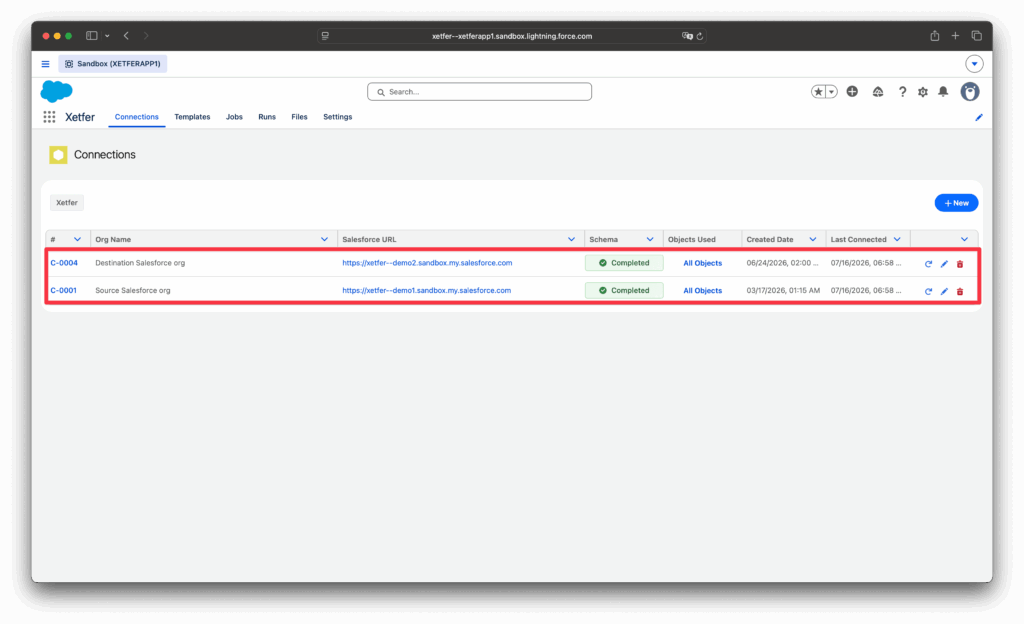
Before Xetfer can move any data, it needs a secure connection to both the org you’re migrating from (the Source) and the org you’re migrating to (the Destination).
- In the org you want to connect, install the Xetfer Connector package:
/packaging/installPackage.apexp?p0=04tQO000001DAaTYAW- On the Connections tab in Xetfer, create a connection for that org.
- Repeat for the second org.
You now have both orgs available to use as a Source or Destination in any template or job.
Step 2: Create a Migration Template
A Template defines exactly what gets migrated — which objects, which fields, and which records.
- On the Templates tab, click New Data Migration and give it a name.
- Select the Source Org. Xetfer reads its schema and lists the available objects.
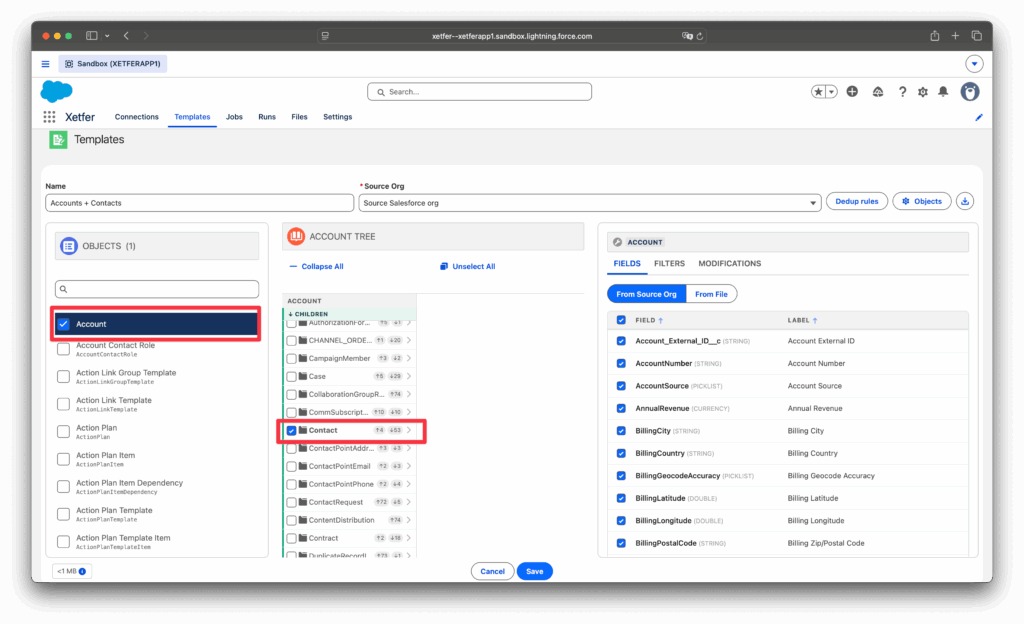
- Add the object(s) you want to migrate. Related objects can be added from the same tree, in either direction — parents or children.
- For each object, select the fields to include on the FIELDS tab.
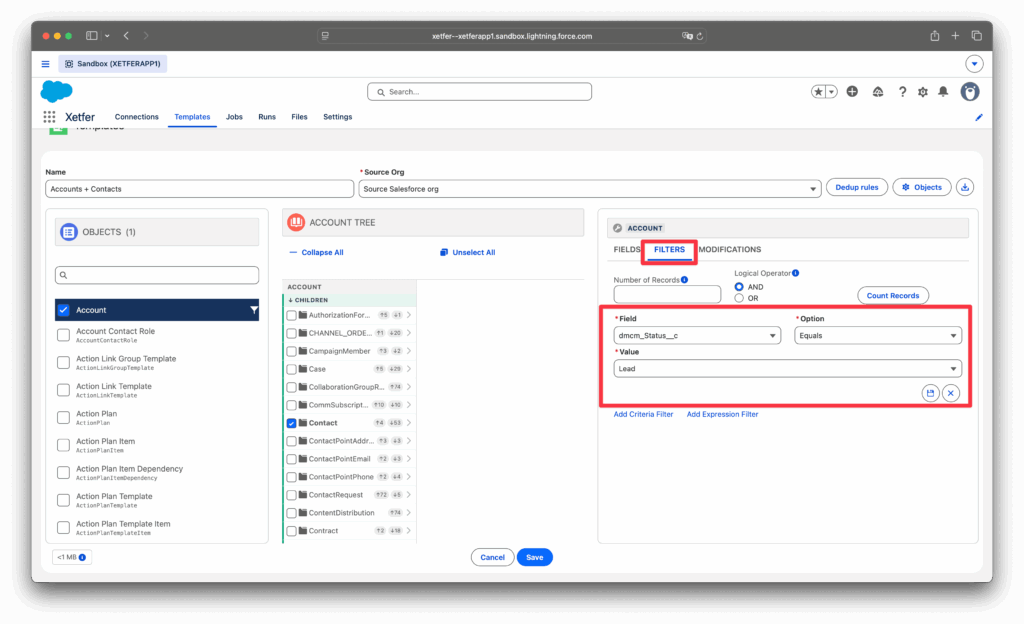
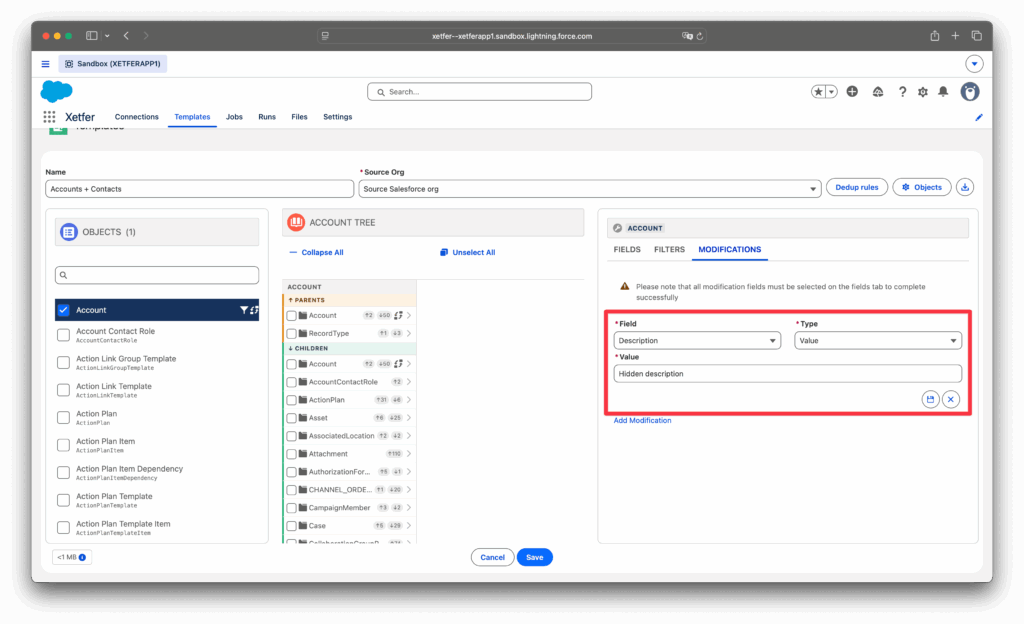
(Optional) Narrow down which records get migrated on the FILTERS tab, or substitute sensitive values on the MODIFICATIONS tab.
Step 3: Create a Job
A Job pairs your template with a Destination org, so Xetfer knows where the data should go.
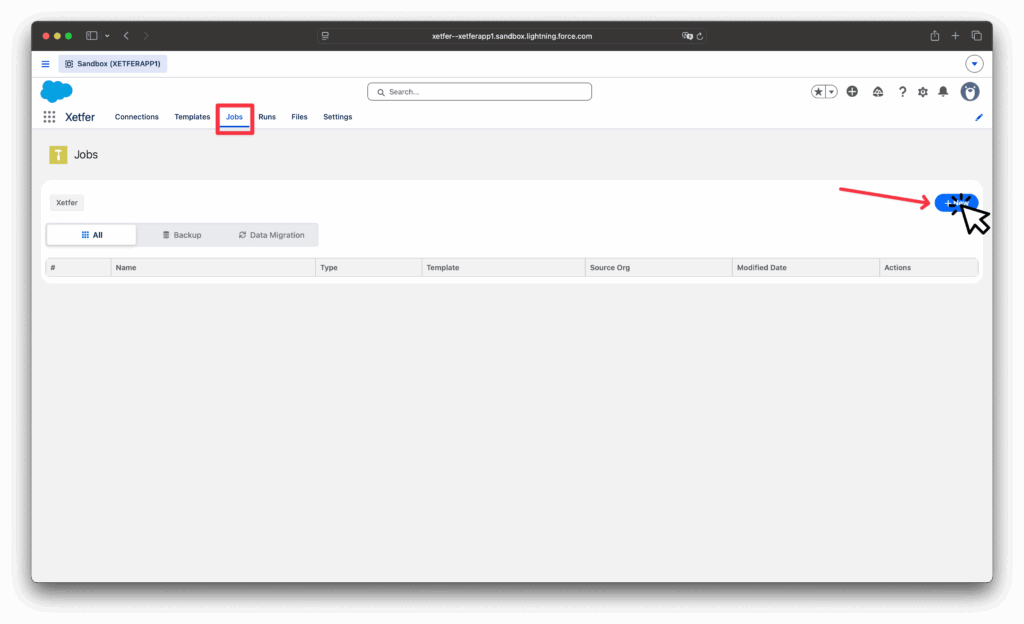
1. On the Jobs tab, click New Job.
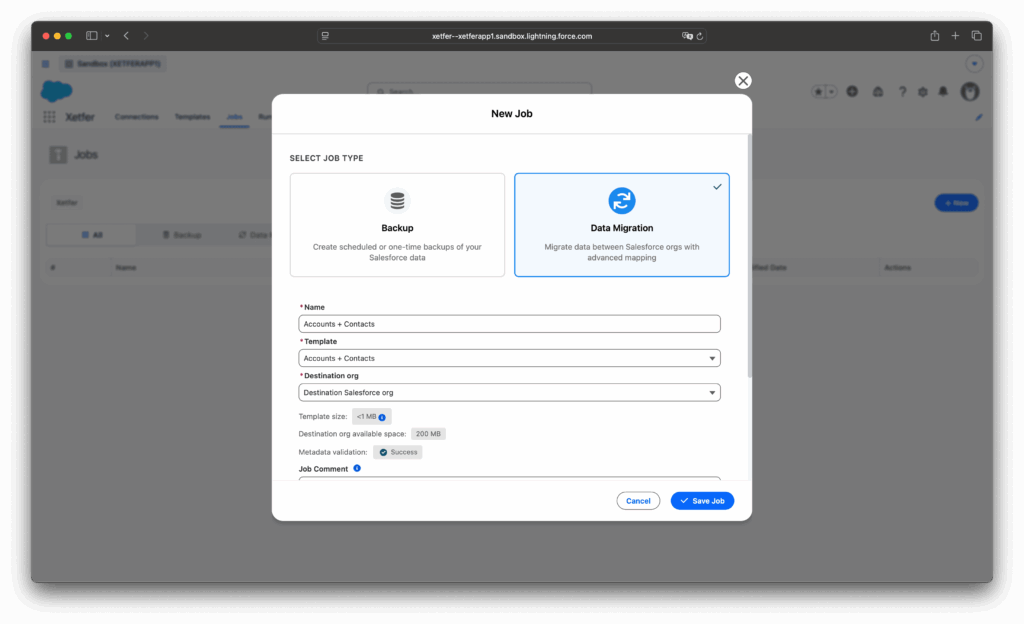
2. Select the template and the destination connection.
3. Xetfer shows the template size and the available space in the destination — review both before saving.
Step 4: Run the Job
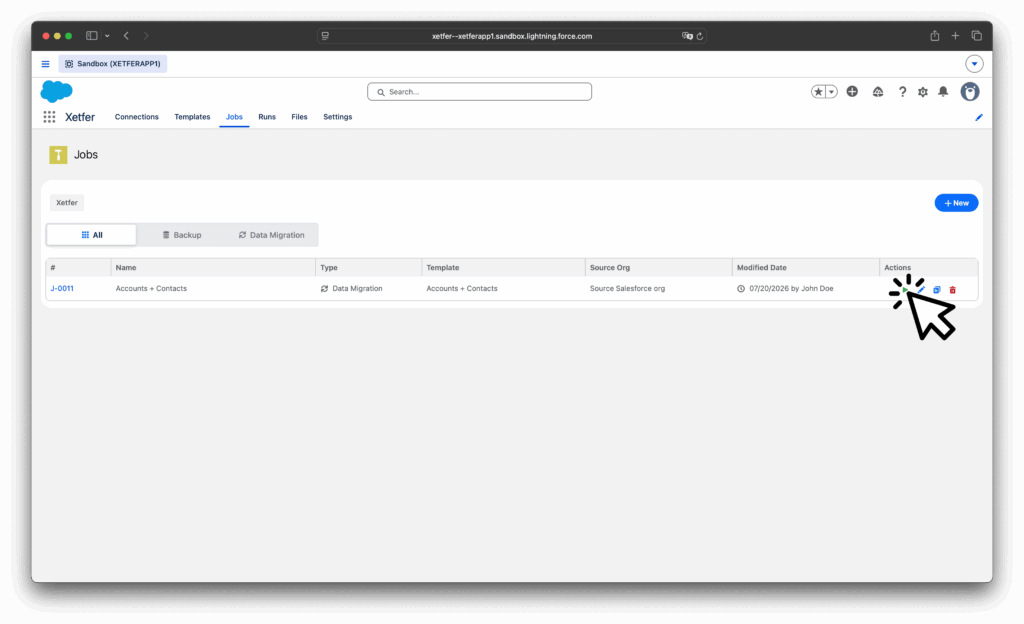
Run the job directly from the Jobs list using the run icon in the Actions column.
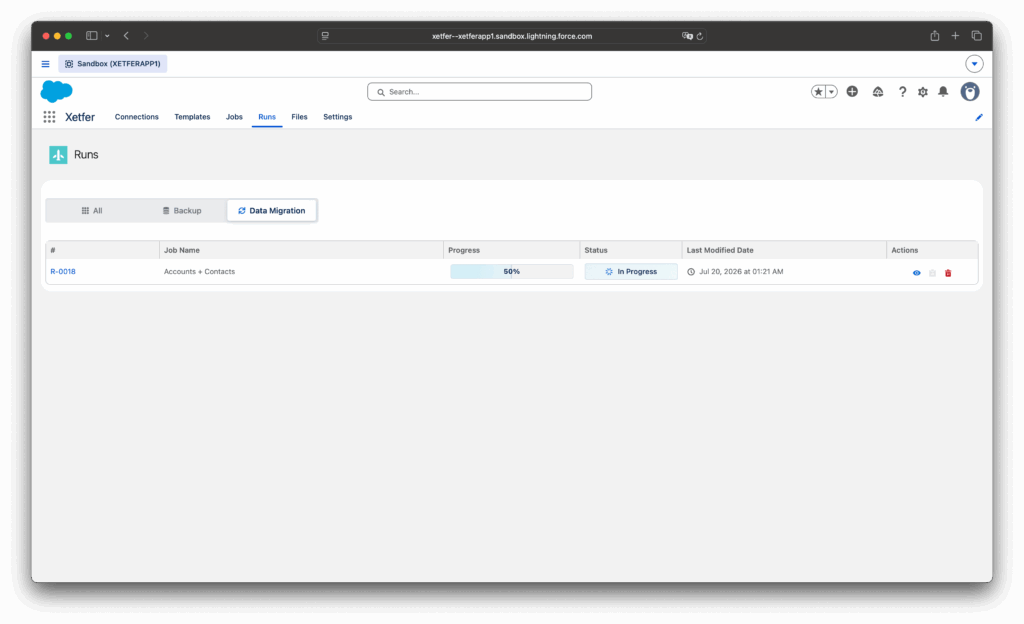
Track its progress on the Runs tab. Each run shows its status — In Progress, Completed, or Failed.
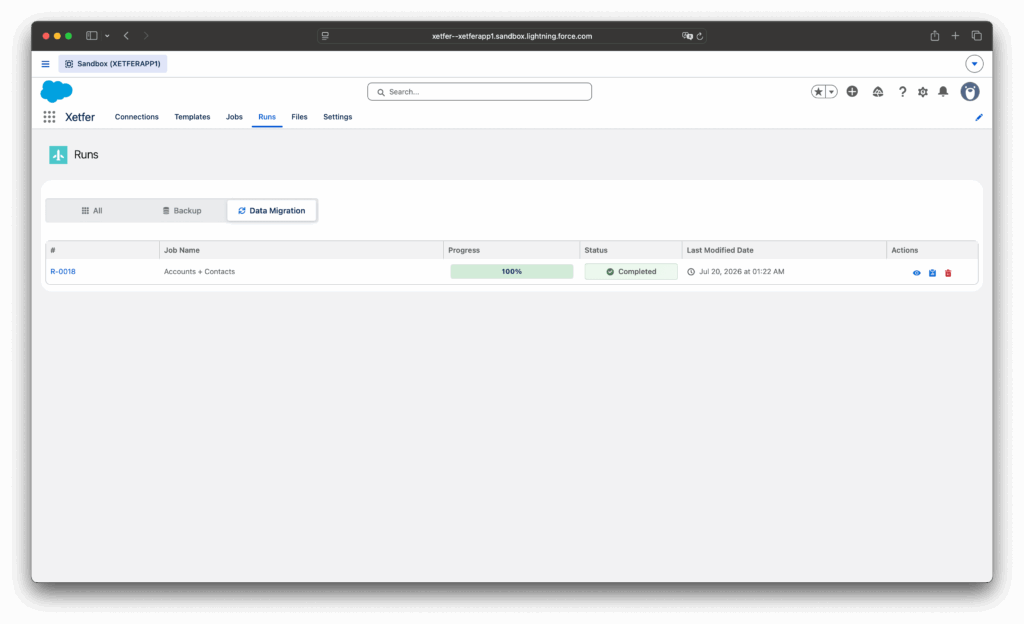
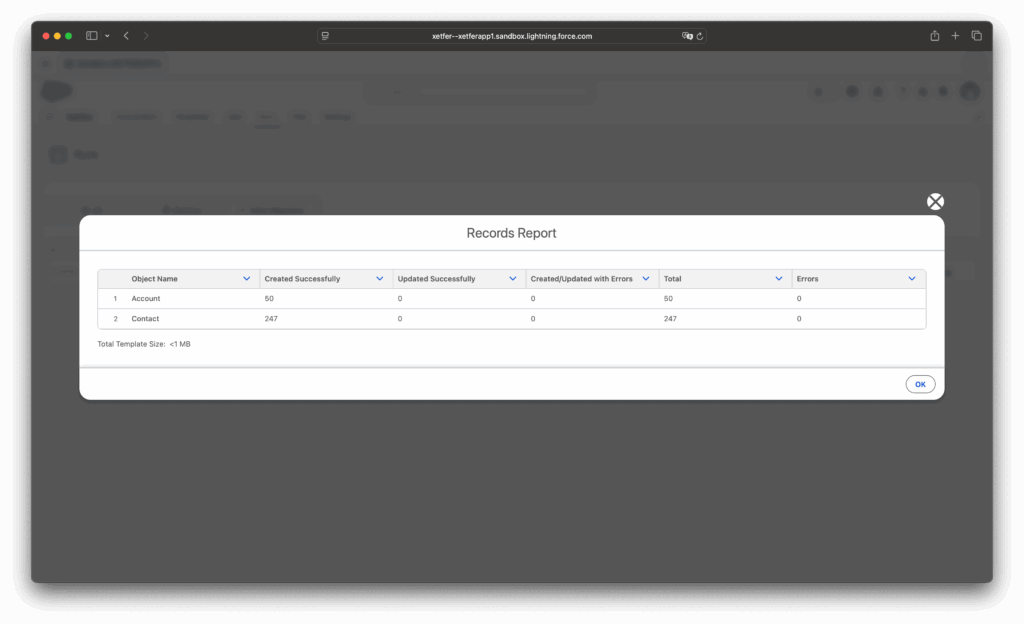
Step 5: Check the Results
Once the run completes, open the destination org and confirm the migrated records are there with the expected field values and relationships.
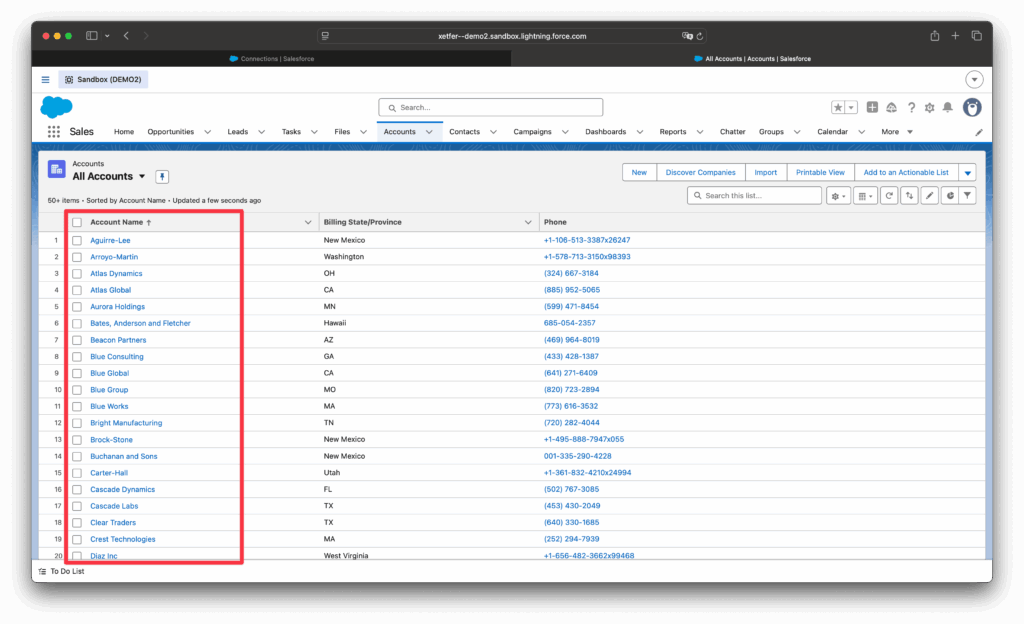
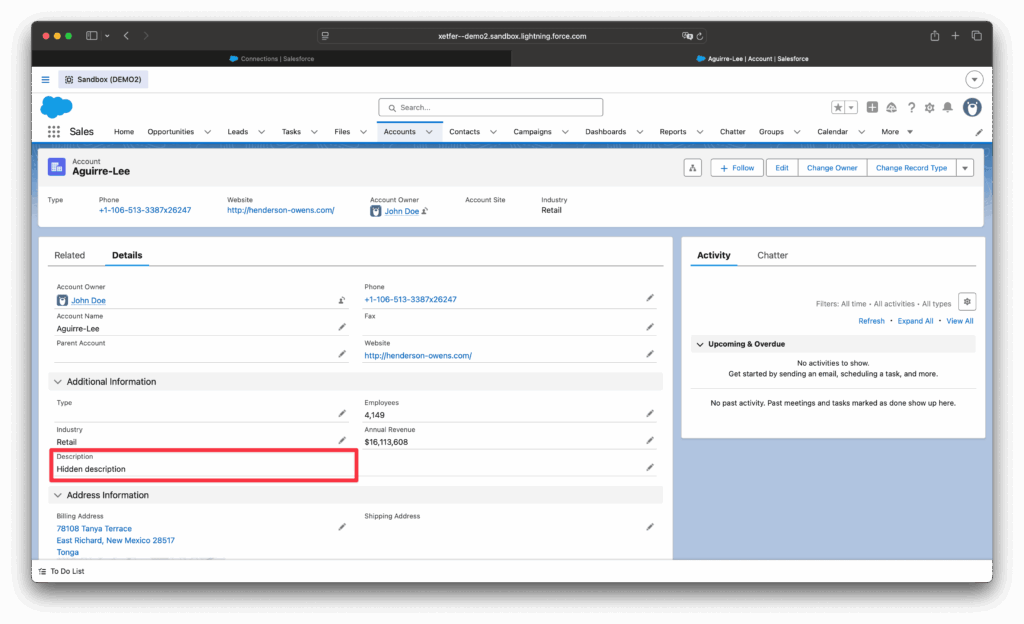
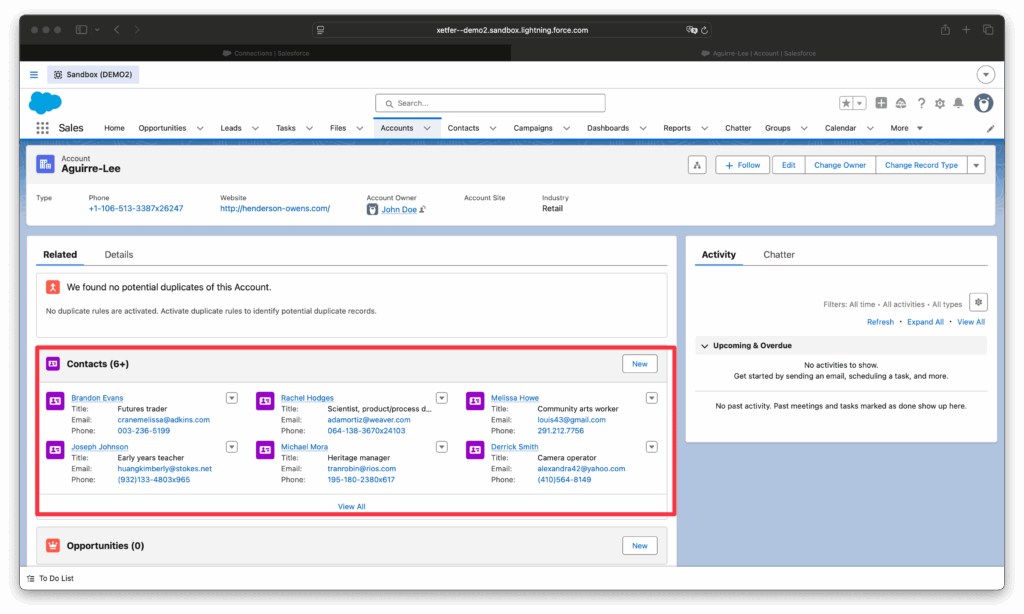
That’s it — your data has moved from one org to another, exactly as defined by the template. Re-run the same job anytime to migrate again, or reuse the template in a new job against a different destination.