Importing Data from CSV Files
Not all data starts out inside a Salesforce org. Sometimes you already have it in a CSV file, and you want to load it into a destination org — with any relationships between records preserved. This guide walks through that flow using a simple example: importing Accounts and Contacts from two CSV files, with each Contact correctly linked to its Account.
Step 1: Prepare Your Files
Xetfer maps CSV columns to Salesforce fields by matching names, so it’s easiest to head your columns with the same names as the Salesforce fields they represent.
In this example:
- salesforce_accounts.csv has a column called
AccountNumber— a plain field that uniquely identifies each account in the file. - salesforce_contacts.csv has a matching
AccountNumbercolumn, showing which Account each Contact belongs to.
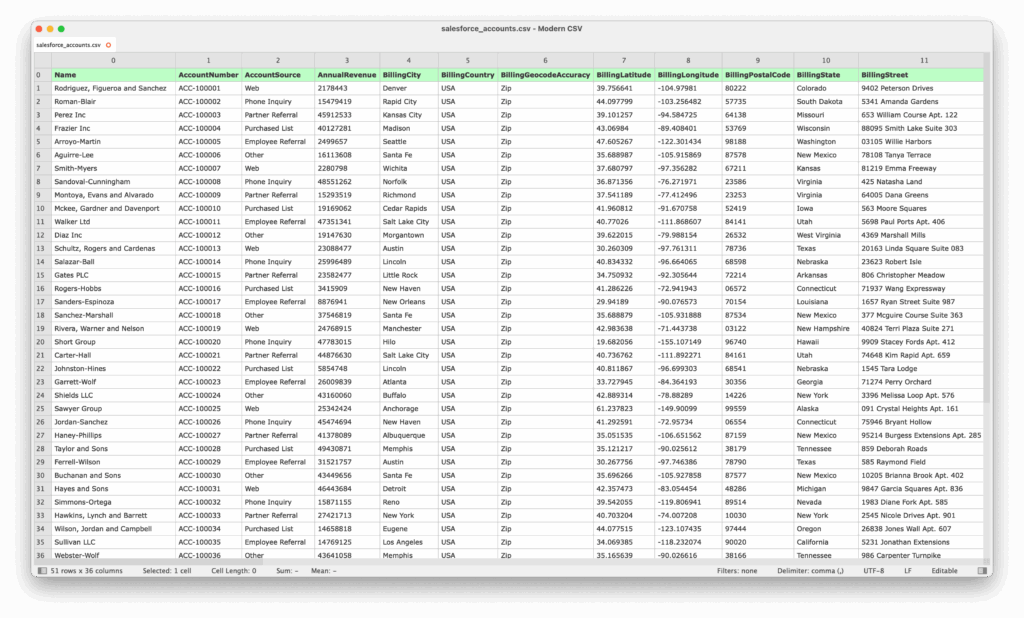
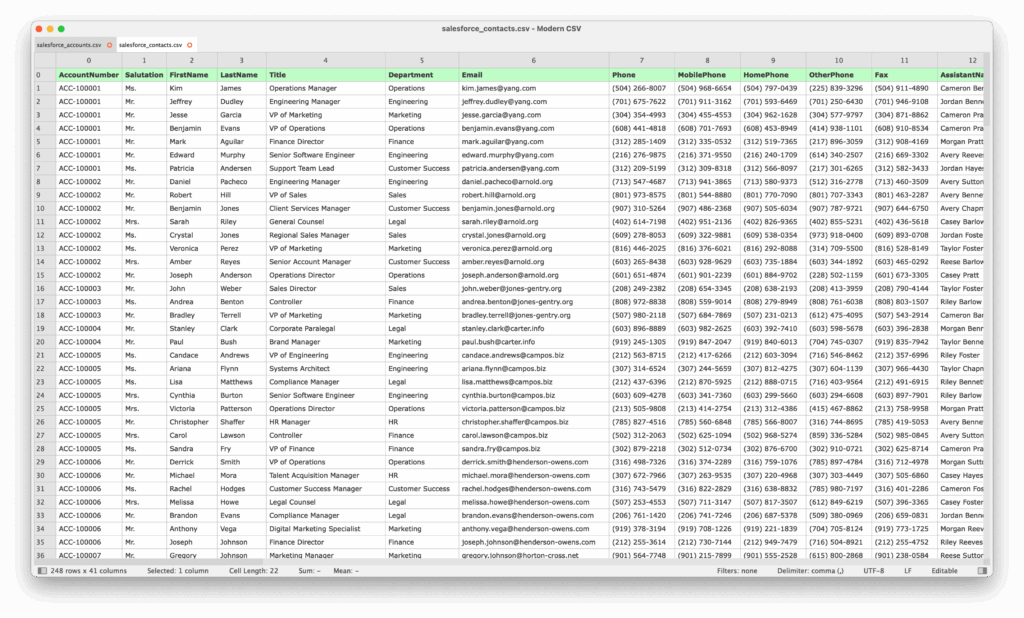
The shared column doesn’t need to be a dedicated External ID field — any field that uniquely identifies the related record works.
Step 2: Upload the Files
- Go to the Files tab in Xetfer.
- Click Upload File and select your CSV file. You can upload several files at once.
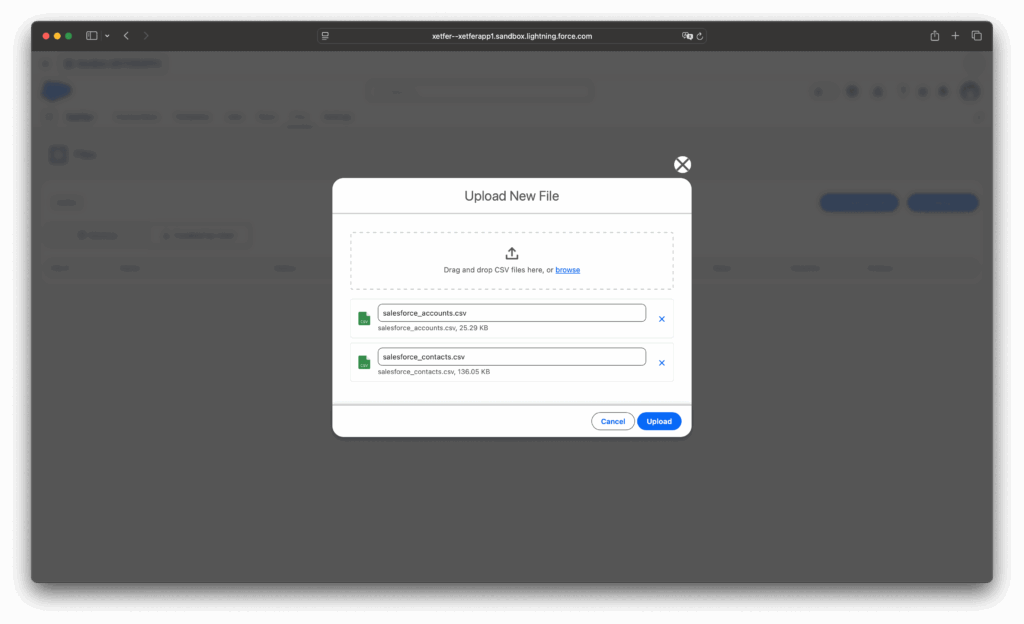
Repeat until both Account and Contact files are available on the Files tab.
Step 3: Build the Template and Map Fields
- On the Templates tab, click New Data Migration
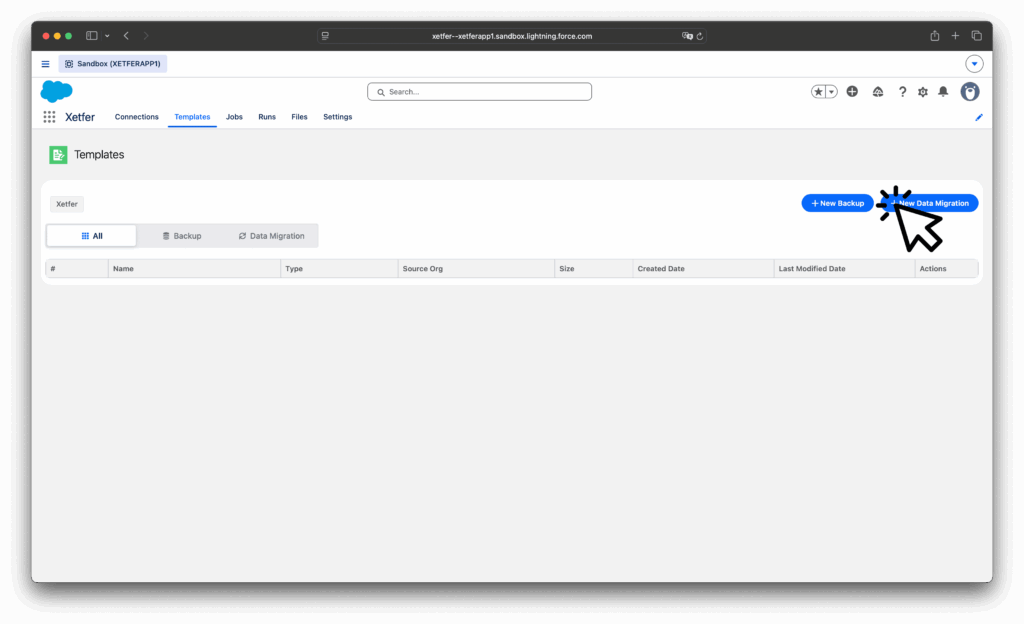
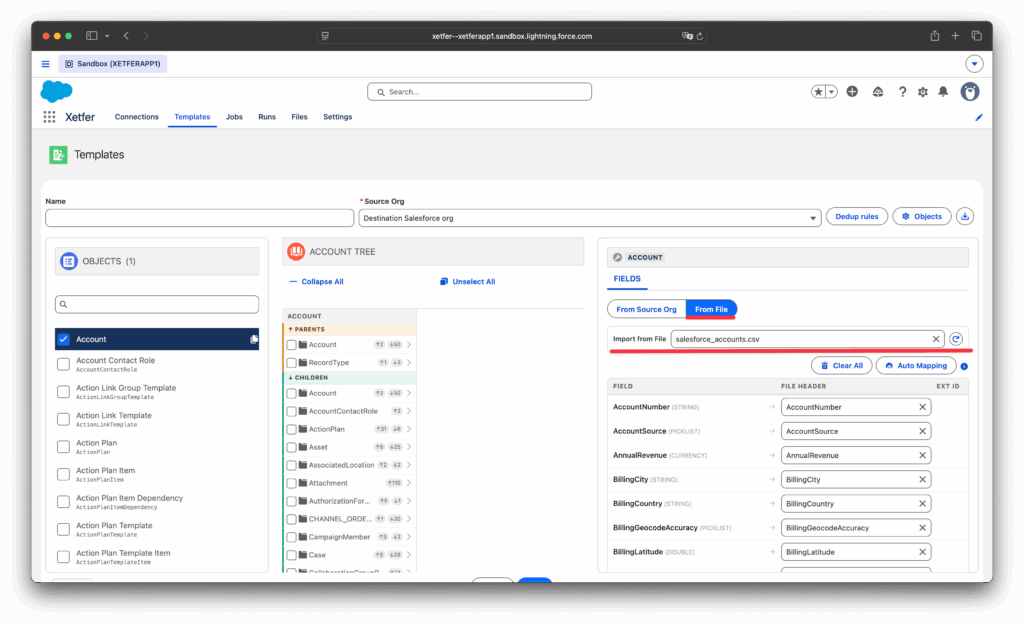
2. For Account, open the FIELDS tab and switch the toggle from From Source Org to From File. Select salesforce_accounts.csv, then map each Salesforce field to its matching column.
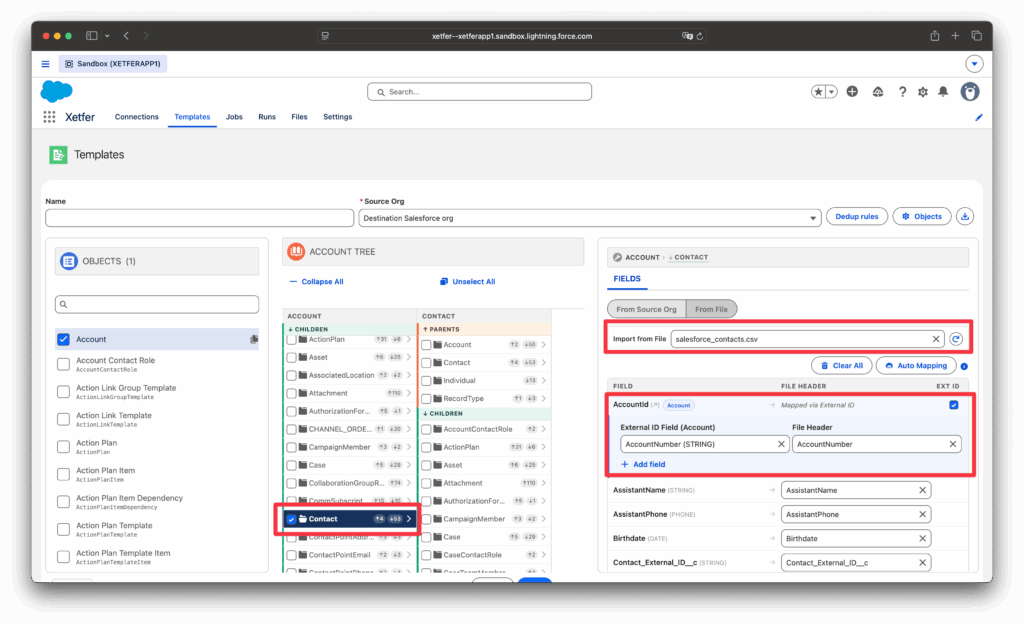
3. For Contact, do the same with salesforce_contacts.csv. When you reach the AccountId lookup field, check Ext ID, then map it to the AccountNumber column — the same field you used to identify each Account. This tells Xetfer how to link each imported Contact to the right Account.
4. Save the template.
Step 4: Create and Run the Migration Job
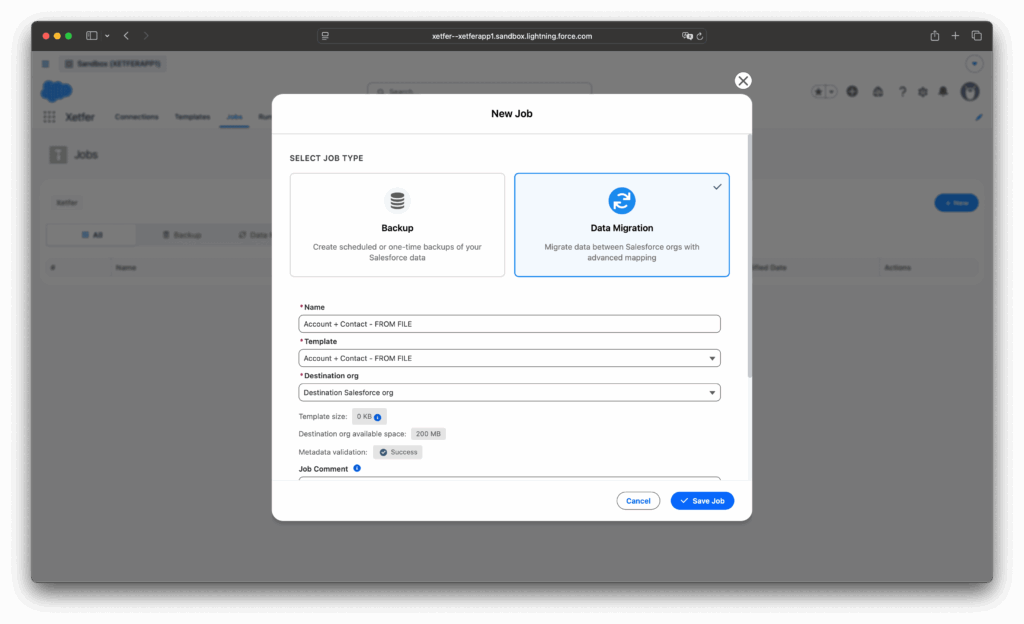
- On the Jobs tab, create a new job pairing this template with your destination connection.
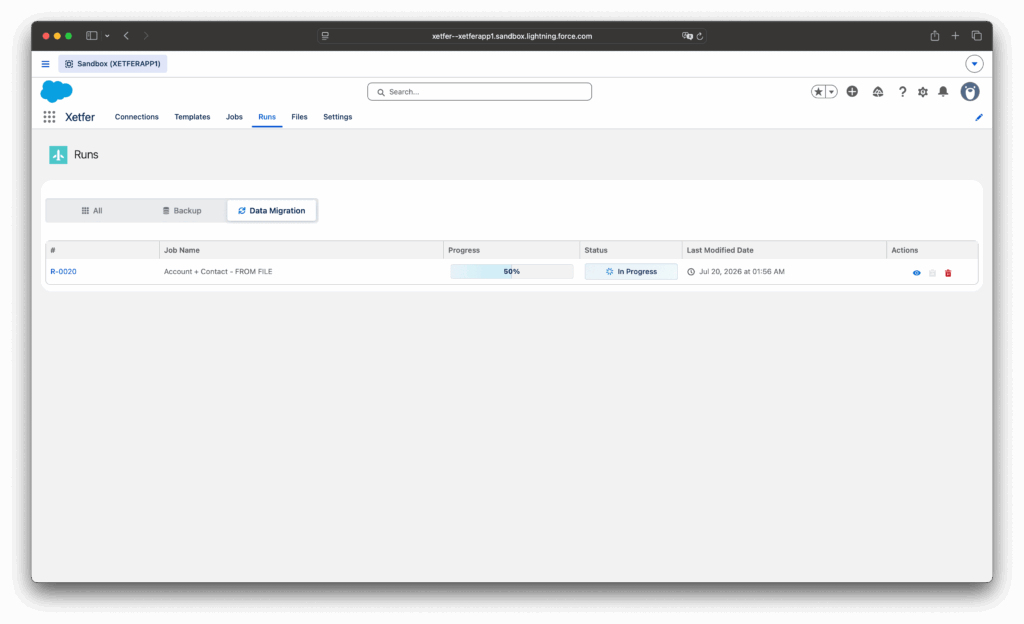
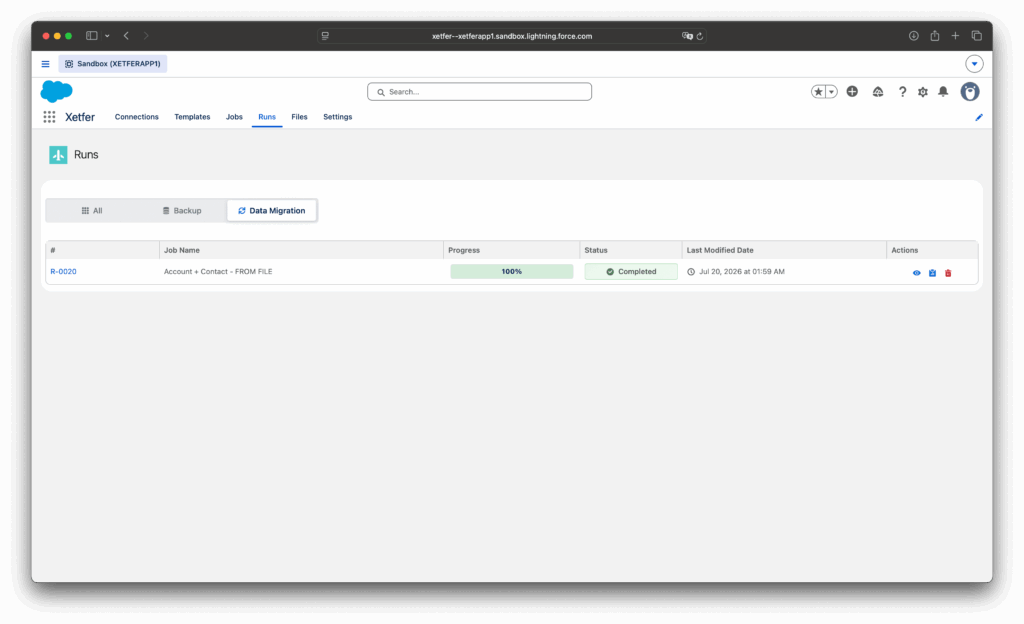
- Run it from the Jobs list, and track progress on the Runs tab.
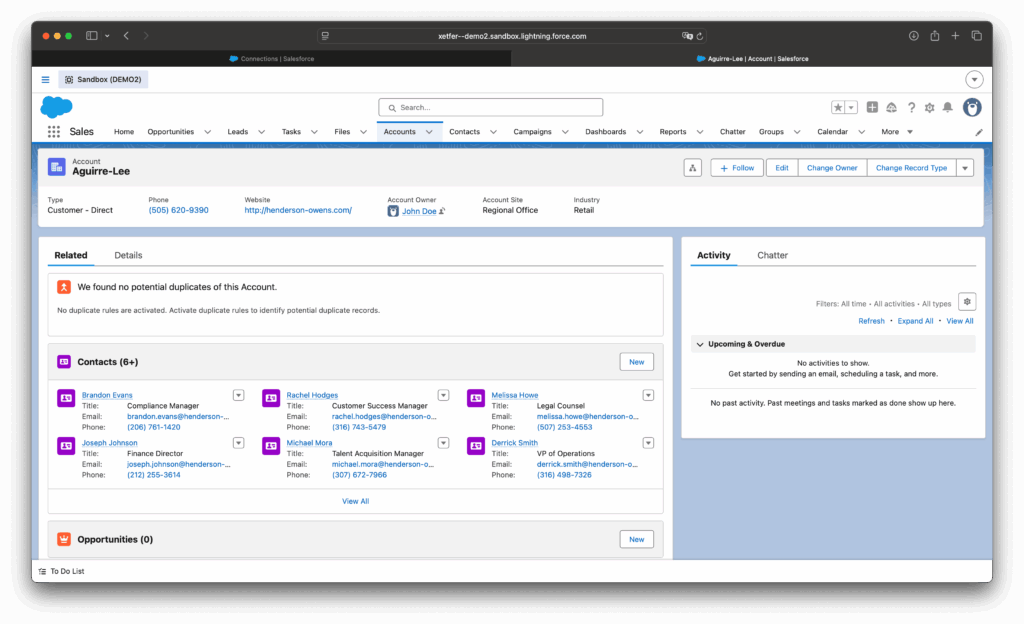
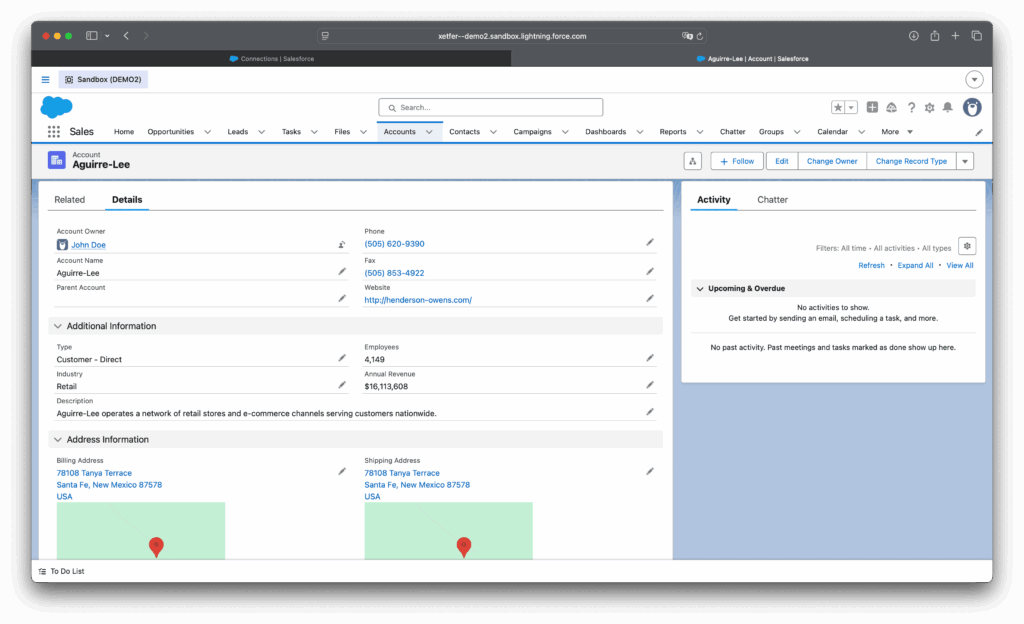
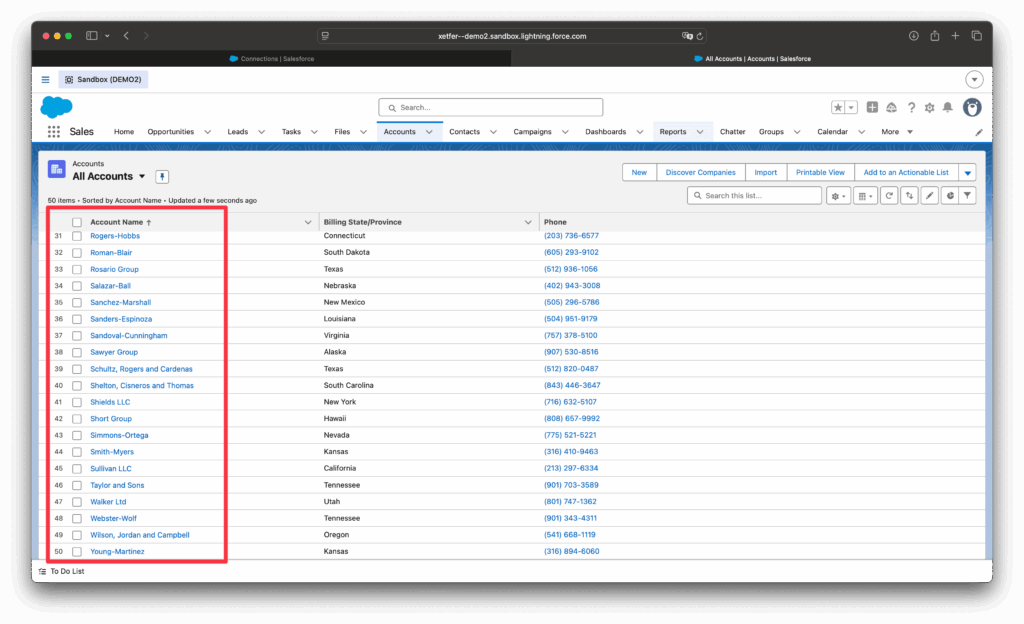
Step 5: Check the Result in the Destination Org
Once the run completes, open the destination org:
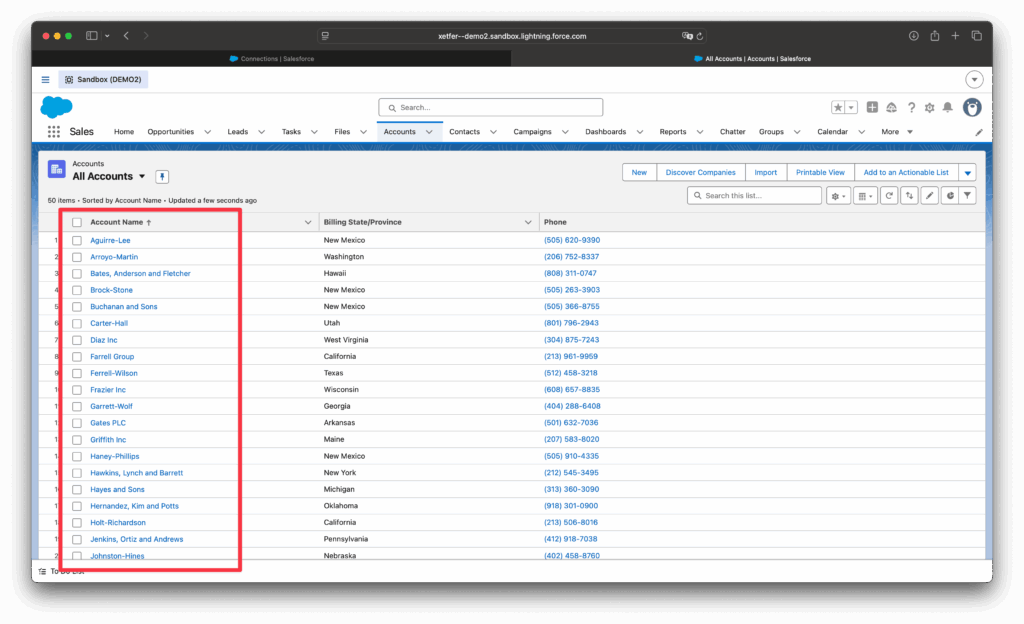
- The Accounts from
salesforce_accounts.csvare there.
- The Contacts from
salesforce_contacts.csvare there too — each one already linked to the correct Account, thanks to theAccountNumbermapping.